Message no. VL224 : There are still batch split items with quantity xxxxxx for item yyy

, In


Last day , I received error when delete outbound ( not yet invoiced / good issue )

image004   

Not sure the root cause of this error, I think maybe something wrong with configuration of batch splitting but I can not duplicate this error .

image001

Document flow show only 2 relevant doc ( Sale Order –> Outbound ) and invoice status of outbound is C . ???

AT first , I try to update outbound status by program RVDELSTA , this run successfully and change invoice status of outbound to A but the problem still not solved.

After try many solutions, I found one script here can solve the problem:

This ABAP script update outbound quantity to the correct one


REPORT ZZLIPS01.
TABLES: LIPS, *LIPS, VBUK, VBUP.
PARAMETERS: VBELN LIKE LIPS-VBELN.
PARAMETERS: POSNR LIKE LIPS-POSNR.
SELECT SINGLE * FROM LIPS WHERE VBELN = VBELN
                            AND POSNR = POSNR.
CHECK SY-SUBRC = 0.
CLEAR: LIPS-KCMENG, LIPS-KCBRGEW, LIPS-KCNTGEW, LIPS-KCVOLUM.
SELECT * FROM LIPS INTO *LIPS WHERE VBELN = VBELN
                                AND UECHA = POSNR.
  LIPS-KCMENG  = LIPS-KCMENG + *LIPS-LGMNG.
  LIPS-KCBRGEW = LIPS-KCBRGEW + *LIPS-BRGEW.
  LIPS-KCNTGEW = LIPS-KCNTGEW + *LIPS-NTGEW.
  LIPS-KCVOLUM = LIPS-KCVOLUM + *LIPS-VOLUM.
  WRITE:/ LIPS-POSNR, LIPS-KCMENG.
ENDSELECT.
IF SY-SUBRC = 0.
  CLEAR LIPS-CHARG. CLEAR LIPS-BWTAR.
ENDIF.
UPDATE LIPS.

Thanks god . 1 full day to delete one outbound .

tables for FI park documents

, In

Useful tables with regards to parked documents...


VBKPF Document Header for Document Parking
VBSEC Document Parking One-Time Data Document Segment
VBSEGA Document Segment for Document Parking - Asset Database
VBSEGD Document Segment for Customer Document Parking
VBSEGK Document Segment for Vendor Document Parking
VBSEGS Document Segment for Document Parking - G/L Account Database
VBSET Document Segment for Taxes Document Parking

KEPM : Planning Framework

, In

Steps & T-Codes to do planning in SAP CO

Display cost and activity input (KP07)

   Display cost center/cost element planning in system by version and period

Copy plan to plan (KP97)
Copy planning data from period to period, from version to version.
Copy actual to plan (KP98)
Copy actual data to planning data from period to period, from actual data to any planning
version
Revaluate planning data (KSPU)
Revaluate planning data in period and version by percentage.
Delete planning data (KP90)
Delete cost element planning data in any version. It is required to control centrally.
Period lock (OKP1)
Use to lock planning version by period and by transaction

Change activity output/price (KP26)

Use to manual input or upload cost center/activity quantity planning by version and period
     Display activity output/price (KP27)
Display cost center/activity quantity planning in system by version and period
    Transfer Activity from PP (KSPP)
Transfer Schedule Activity quantity from SOP or MRP to planning version.
    Plan Reconciliation (KPSI)
After run KSPP, we run KPSI to reconcile from Schedule Activity quantity to Plan Activity
quantity
    Delete planning data (KP91)
Delete activity planning data in any version. It is required to control centrally

Change SKF planning (KP46)
Use to manual input or upload cost center/SKF planning by version and period
    Display SKF planning (KP47)
Display cost center/SKF planning in system by version and period
    Copy plan to plan (KP97)
    Copy actual to plan (KP98)
Copy actual data to planning data from period to period, from actual data to any planning
version
    Transfer SKF plan data from LIS (KVA4)
Transfer SKF plan data from LIS to planning version.
  Delete planning data (KP91)

Book:SAP – Customizing Guide

, In , ,

This PDF doc by Ahmad Rizki give overview for customizing SAP modules including:
General Setting
Enterprise Structure
Logistic – General
Sales & Distribution
Material Management

Donwload this Sap Book

Create Controlling Area in SAP CO

, In ,


Transaction Code :- OKKP

IMG Menu Path :- Controlling > General Controlling > Organization > Maintain Controlling Area > Maintain Controlling Area

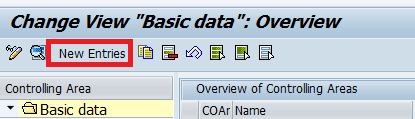
Step 1 :- Enter T Code OKKP and select the new entries


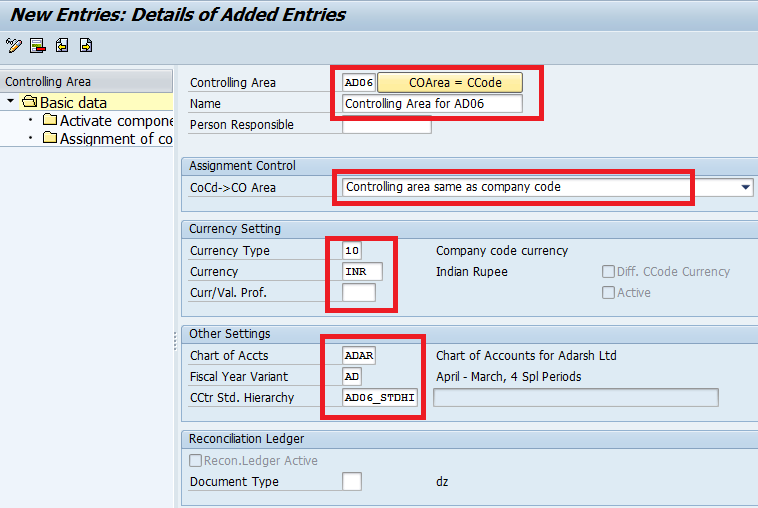
Step 2 :- Update the following entries
Controlling area : AD06 ( Company code and Controlling area code can be same)
Name :controlling area for AD06
Company code to controlling area :- Select controlling area same as company code
Currency type :- select 10 ( company code currency )
Update currency field, Chart of Accounts filed and Fiscal year variant
Cost Center standard hierarchy : AD06_STDHI


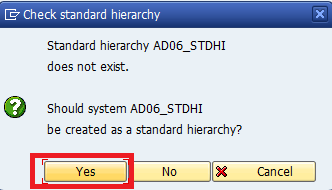
Step 3 :- Press the Enter key to continue, the system prompts for creation of standard hierarchy. Select yes button to create as a standard hierarchy .


Press enter and click on save icon to save the data.

Step 4 :- Cost Center Standard Hierarchy:

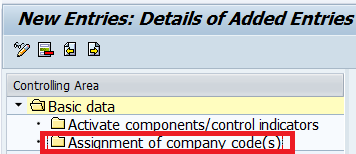
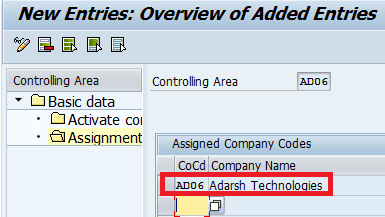
Double click on assignment of company codes folder and Select new entries button


Enter the company code AD06 and click on save button or Ctrl+S


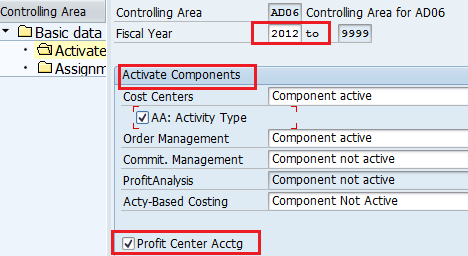
Double click on a activate components / control indicators folder and Select new entries button
Update Fiscal year and Select active type check box,
Select component active for Cost center and Order management
Select profit center accounting check box


Select Save icon to save the Data.

Blog Archive