Note: If the company codes use different operational chart of accounts, inter company code controlling can not be performed.
Basic Settings:
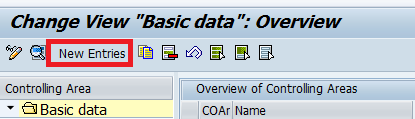
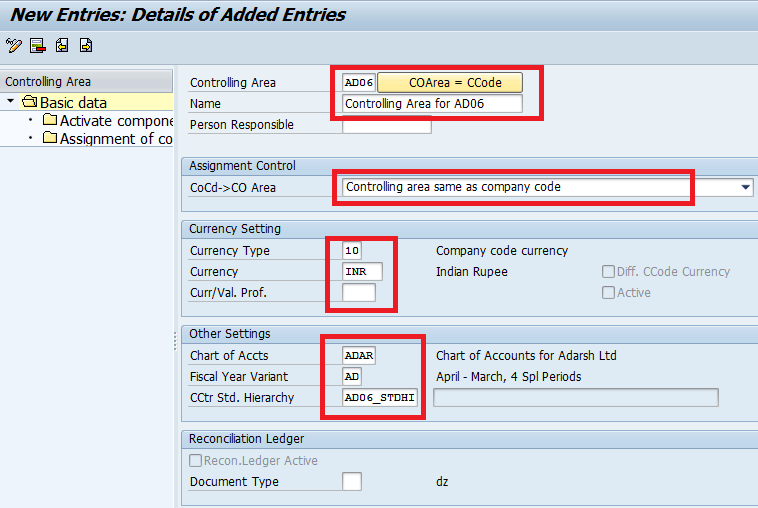
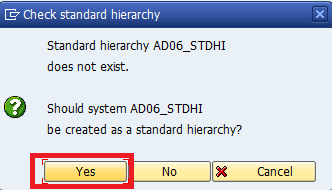
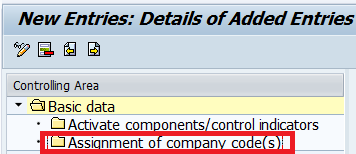
Maintain Controlling Area (OKKP)
SPRO > Controlling > General Controlling > Organization > Maintain Controlling Area
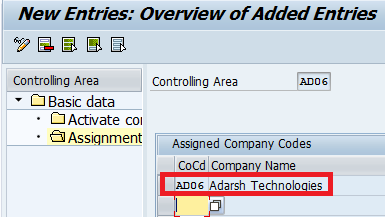
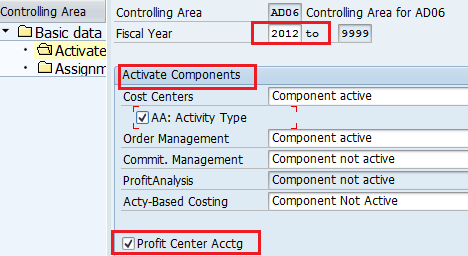
(Assignment Control à Controlling Area same as Company Code, Check on ‘Activity Type’, Check on ‘Profit Center’ & Assign to Company Code)
Maintain Versions
SPRO > Controlling > General Controlling > Organization > Maintain Versions
Select ‘0’ Plan/Actual Version, In ‘Settings by Fiscal Year’ give your CO Area
Maintain Number Ranges for Controlling Documents (KANK)
SPRO > Controlling > General Controlling > Organization > Maintain Number Ranges for Controlling Documents
Create Group ‘Controlling Area for XYZ’ with Interval 1 to 100000 and Assign the Element Group ‘COIN’ CO through Postings from FI
Cost Element Accounting
Primary Cost Element: Cost Element & Revenue Element (Income & Expenditure in GL)
Secondary Cost Element: For Apportionment (Assessment) from one Cost Center to other Cost Center
Creation of GL Account & Cost Element at FI Level (FS00)
Environment > Edit Cost Element, give Validity Dates & Cost Element Category ‘1’ Primary Costs / Cost Reducing Revenues, Field Status Group G004 Cost Accounts
Creation of Cost Element at CO Level (KA01)
Accounting > Controlling > Cost Element Accounting > Master Data > Cost Element > Individual Processing > Create Primary
Automatic Creation of Cost Element (OKB2)
SPRO > Controlling > Cost Element Accounting > Master Data > Cost Elements > Automatic Creation of Primary/Secondary Cost Element > Make Default Settings
Create Cost Element Group (KAH1)
Accounting > Controlling > Cost Element Accounting > Master Data > Cost Element Group > Create
Cost Center Accounting
- To know Department wise costs
Create Cost Center (KS01)
Accounting > Controlling > Cost Center Accounting > Master Data > Cost Center > Individual Processing > Create
(Give a Cost Center Category, ‘F’ Production Cost Center, ‘H’ Service Cost Center)
Create Cost Center Group (KSH1)
Accounting > Controlling > Cost Center Accounting > Master Data > Cost Center Group > Create
To get Cost Center wise Report (KSB1)
Accounting > Controlling > Cost Center Accounting > Information System > Reports for Cost Center Accounting > Line Items > Cost Centers: Actual Line Items
To See CO Document Numbers (KSB5)
Accounting > Controlling > Cost Center Accounting > Information System > Reports for Cost Center Accounting > Line Items > CO Documents: Actual Costs
Repost Line Items (KB61): For transferring values from one Cost Center to other Cost Centers, FI Document is the base, Assign Element Group RKU3 in KANK
Accounting > Controlling > Cost Center Accounting > Actual Postings > Repost Line Items > Enter
Repost Costs (KB11N): When a new Cost Center is created (FI Document not required, Cost Element is the base to Post to a newly created Cost Center or Department), Assign Element Group RKU1 in KANK
Accounting > Controlling > Cost Center Accounting > Actual Postings > Manual Posting of Costs > Enter
Planning Cost Center wise (KP06): To Plan Fixed Costs Cost Element wise in each Cost Center, Assign Element Group RKP1 in KANK
Accounting > Controlling > Cost Center Accounting > Planning > Cost & Activity Inputs > Change
To View the Report Planned, Actual and Variance (S_ALR_87013611)
Accounting > Controlling > Cost Center Accounting > Information System > Reports for Cost Center Accounting > Plan/Actual Comparisons > Cost Centers > Actual/Plan/Variance
Assessment: For Apportionment of Service Cost Center Expenses to Production Cost Centers –
- Create Secondary Cost Element
- Assign Element Group RKIU (Actual Overhead Assessment)
- Create Assessment Cycle
- Execute Assessment Cycle
Creation of Secondary Cost Element (KA06)
Accounting > Controlling > Cost Element Accounting > Master Data > Cost Element > Individual Processing > Create Secondary
(Name: Service to Production, Cost Element Category: ‘42’ Assessment)
Creation of Assessment Cycle (S_ALR_87005742)
Accounting > Controlling > Cost Center Accounting > Period End Closing > Current Settings > Define Assessment
Create Actual Assessment
Give Cycle Name
Check on ‘Iterative’ Interdependent Transfers
Attach Segment: Service to Production
Assessment Cost Element: Give ‘Secondary Cost Element’ Number
Sender Rule: Posted Amounts
Select ‘Actual Values’
Receiver Rule: Fixed Percentages
In ‘Sender/Receiver’ Tab give Sender and Receiver Cost Center Details
In ‘Receiver Tracing Factor’ Tab give the Portions of Apportionment
Execution of Assessment Cycle (KSU5)
Accounting > Controlling > Cost Center Accounting > Period End Closing > Single Functions > Allocations > Assessment
Give Period, Select Test Run & Detailed Lists and Give the Cycle Name created
Execute
See the Report through ‘Receiver’ as well as ‘Sender’ Buttons
Deselect Test Run and Execute
Internal Orders
To Know –
- Vehicle wise Costs
- Telephone wise Costs
- RM Consumption for a particular Production Order
- Exhibition Costs
Internal Orders are of 2 Types:
1) Statistical Orders
2) Real Orders (‘Settlement Profile’ will be required only for Real Orders)
Statistical Orders
Steps:
- Creation of Order Types
- Creation of New Field Status Group where Cost Center and Internal Order both are mandatory Fields
- Creation of Internal Orders
- Creation of Internal Order Groups
- View Internal Order Report
- Repost Line Items
- Repost Costs
- Planning Internal Order wise
- View Plan/Actual/Variance Report
Creation of Order Types (KOT2_OPA)
SPRO > Controlling > Internal Orders > Order Master Data > Define Order Types
Order Category: 01 ‘Internal Order – Controlling’
Order Type: Veh (any) Order Type for Vehicles
Planning Profile: 000001 ‘General Plan Profile’
Object Class: Overhead Costs
Check on ‘Release Immediately’ & Save
Assign Order Type ‘Veh’ to ‘Orders: External Numbers Check Box’ & Save
Select Back Arrow & Save once again
Creation of New Field Status Group where Cost Center and Internal Order both are mandatory Fields
SPRO > Financial Accounting > FAGS > Document > Line Item > Controls > Maintain Field Status Variants
Select G004 Cost Accounts, Copy as G002 and give name: Cost Accounts CC & IO mandatory, Enter & Save
Double Click Additional Account Assignments of G002 and make
‘CO/PP Order’ Field: Required Entry
‘Quantity’: Optional
Creation of GL Master and Cost Element (FS00)
Create ‘Vehicle Fuel’ Account with ‘G002’ (Cost Acts CC & IO) as Field Status Group
Creation of Internal Orders (KO01)
Accounting > Controlling > Internal Orders > Master Data > Special Functions > Order > Create
Order Type: Veh & Enter
Order: Give a Vehicle Number
Object Class: Overhead
Control Data Tab à
System Status: REL (Release)
Check on ‘Statistical Order’
Create as many Orders as required in the above way
Creation of Internal Order Group (KOH1)
Accounting > Controlling > Internal Orders > Master Data > Order Group > Create
Posting of Transaction (F-02)
System will ask for ‘Cost Center’ and ‘Internal Order’ while Posting the Transaction
To View Internal Order Report (KOB1)
Accounting > Controlling > Internal Orders > Information Systems > Reports for Internal Orders > Line Items > Orders: Actual Line Items
Give Order No. & Execute
Repost Line Items (KB61)
Accounting > Controlling > Internal Orders > Actual Postings > Repost Line Items > Enter
Give the FI Document Number & through New Account Assignment Repost to other cost center and other order.
Repost Costs (KB11N)
Accounting > Controlling > Internal Orders > Actual Postings > Manual Reposting of Costs > Enter
Select Screen Variant: Cost Center/Order/Per.No.
Give the details of Old Cost Center, Old Order, Cost Element, New Cost Center, New Order etc.
Planning Internal Order wise (KPF6)
Accounting > Controlling > Internal Orders > Planning > Cost & Activity Inputs > Change
Version: 0, Give Cost Element Range, Select ‘Form Based’ as well as ‘Overview Screen’ and Plan Costs for the required Cost Elements.
To View Plan/Actual/Variance Report (S_ALR_87012993)
Accounting > Controlling > Internal Orders > Information System > Reports for Internal Orders > Plan Actual Comparisons > Orders: Actual/Plan/Variance
Give Period, Plan Version and Order & Execute
Real Orders
Foreign Exchange Revaluation:
Loan taken in USD 1000 @ 45/- 45000/-
As on 31.03.2004 1000 @ 50/- 50000/-
----------
Forex Loss 5000/-
----------
GL Entry à
Forex Loss A/c. Dr. 5000
To FC Loan A/c. 5000
CO Entry à Through Internal (Real) Order the Loss will be posted to the Asset.
Steps:
- Create Accounts Required – Bank Term Loan A/c. & Forex Profit/Loss A/c.
- Creation of Valuation Method
- Prepare Automatic Postings for FC Valuation
- Assignment of Exchange Rate Difference Key in GL Master
- Creation of a Sub Asset (For Forex Gain/Loss on the Asset)
- Maintain Allocation Structure
- Maintain Settlement Profile
- Creation of Order Type
- Assign Element Group KOAO
- Creation of Internal Order
- Assign Order in the Cost Element (in Forex Gain/Loss A/c.)
- Posting of FC Term Loan
- Enter Exchange Rate in Forex Table
- Forex Loan Revaluation Run
- Execution of Internal Order Settlement
Creation of Bank Term Loan A/c. under Secured Loans (FS00)
Bank Term Loan A/c. A/c Currency: USD Field Status Group: G005
Deselect only Balances in Local Currency
Creation of ‘Forex Gain/Loss A/c’ under Admn Expenses (FS00)
Forex Gain/Loss A/c. INR Only Balances in Local Currency
Field Status Group: G002 (CC&IO Mandatory) Save
Cost Element Category: 1 (Primary Costs/Cost Reducing Revenues)
Default Cost Center Assignment: Give a Cost Center
Creation of Valuation Method (OB59)
SPRO > Financial Accounting > General Ledger Accounting > Business Transactions > Closing > Valuating > Define Valuation Methods
Give a name for Valuation Method: XYZ1 Desc: FC Valuation for XYZ
Select ‘Always Valuate’ Doc Type: SA
Debit Balance Exchange Rate Type: B
Credit Balance Exchange Rate Type: B
Select ‘Determine Rate Type from Account Balance’
Prepare Automatic Postings for FC Valuation (OBA1)
(Defining Exchange Rate Difference Key)
SPRO > Financial Accounting > General Ledger Accounting > Business Transactions > Closing > Valuating > Prepare Automatic Postings for FC Valuation
Double click ‘Exchange Rate Difference in FC Balances’ KDB
Exchange Rate Difference Key: ABC (any)
Expense A/c.: GL A/c. of ‘Forex Gain/Loss’
E/R Gains A/c.: GL A/c. of ‘Forex Gain/Loss’
Assignment of ‘Exchange Rate Difference Key’ in GL Master (FS00)
In Bank Term Loan A/c. under Control Data Tab Assign Exc Rate Dif Key ‘ABC’
Creation of Sub Asset (AS11)
Asset: Give the Main Asset Number Desc: Forex Gain/Loss on Asset
Capitalized on: 31.03.2004
Depreciation Area Tab à Ord Depreciation Start Date: 01.04.2004
Maintain Allocation Structure
SPRO > Controlling > Internal Orders > Actual Postings > Settlement > Maintain Allocation Structure
Select ‘A1’ CO Allocation Structure
In ‘Assignments’ Select 30 Other Costs
In ‘Source’ à From Cost Element: Give ‘Forex Gain/Loss A/c.’
In ‘Settlement Cost Elements’ à Receiver: ‘FXA’ Fixed Asset
Check on ‘By Cost Element’
Maintain Settlement Profile
SPRO > Controlling > Internal Orders > Actual Postings > Settlement > Maintain Settlement Profile
Settlement Profile: IO Desc: Fixed Asset Settlement Profile for XYZ
Allocation Structure: ‘A1’ CO Allocation Structure
Valid Receiver à Fixed Asset: ‘1’ Can be Settled
Other Parameters à Doc Type: AA Max No of Distribution Rules: 999
Indicators à Check on ‘% Settlement’
Check on ‘Equivalence Numbers’
Check on ‘Amount Settlement’
Creation of Order Type (KOT2_OPA)
SPRO > Controlling > Internal Orders > Order Master Data > Define Order Types
Order Category: ‘01’ Internal Order Controlling & Enter
Order Type: FCLV (any) Foreign Currency Revaluation
Settlement Profile: IO
Planning Profile: 000001
Object Class: Overheads
Release Immediately & Save
In ‘Assign/Change Intervals’ à Assign Order Type ‘FCLV’ to ‘Orders’
Assign Element Group KOAO (KANK)
Assign ‘KOAO’ to ‘Controlling Area for XYZ’
Creation of Internal Order (KO01)
Order Type: FCLV Foreign Currency Revaluation
Order: Bank Term Loan Desc: Bank Term Loan Revaluation
Settlement Rule à Category: FXA Fixed Asset Settlement Receiver: Sub Asset No.
Percentage: 100 Save & Enter the Message
Assign Order in the Cost Element (KA02)
Cost Element: Forex Gain/Loss A/c. & Enter
Default Account Assignment Tab à Order: Bank Term Loan Save
Posting of Bank Term Loan (F-02)
Post Loan Receipt in USD with user given Rate
Enter Exchange Rate in Forex Table
SPRO > General Settings > Currencies > Enter Exchange Rates
Forex Loan Revaluation Run (F.05)
Accounting > Financial Accounting > General Ledger > Periodic Processing > Closing > Valuate > FC Valuation
Co. Code: XYZ Evaluation Key Date: 31.03.2004
Valuation Method: XYZ1
Selections Tab à Check on ‘Valuate GL A/c. Balances’ GL A/c.: Bank Term Loan
Posting à Check on ‘Balance Sheet Preparation Valuation’
Check on ‘Creating Postings’
Execute & Document will be Posted.
To See Internal Order Report (KOB1)
Internal Order: Bank Term Loan
Posting Date: 01.01.2004 to 31.03.2004 & Execute
Execution of Internal Order Settlement (KO88)
Accounting > Controlling > Internal Orders > Period End Closing > Single Functions > Settlement > Individual Processing
Order Name: Bank Term Loan
Settlement Period: 12 Fiscal: 2003 Process Type: Automatic
Select ‘Test Run’
Select ‘Check Transaction Data’ & Execute & See the Report
Back Remover Test Run Execute
To see the Asset Value updation go to Report S_ALR_87011965
Profit Center Accounting
To Know Product wise Profitability
To Know Area wise Profitability
Expenditure à Through Cost Centers
Income à Through Automatic Assignments
- A Profit Center can have one or more Cost Centers
- In PCA, Postings will be done through DERIVATION RULES
- Profit Center and Business Area will be assigned in Cost Center
PCA – Product wise Structure (Sales Accounts Product wise):
Company
|
Company Code
|
Business Area
|
| | |
Product 1 (Profit Center) Product 2 (Profit Center) Product 3 (Profit Center)
|
| | |
Cost Center A Cost Center B Cost Center C
PCA – Area wise Structure (Business Area = Profit Center):
Company
|
Company Code
|
| | |
Busi Area 1 (Product 1) Busi Area 2 (Product 2) Busi Area 3 (Prod 3)
|
| | |
Cost Center A Cost Center B Cost Center C
Set Controlling Area
SPRO > Controlling > Profit Center Accounting > Basic Settings > Set Controlling Area
Maintain Controlling Area Settings
SPRO > Controlling > Profit Center Accounting > Basic Settings > Controlling Area Settings > Maintain Controlling Area Settings
Select ‘Elimination of Internal Business’
PC Local Currency: ‘20’ Controlling Area Currency
Select ‘Store Transaction Currency’
Valuation View: Legal Valuation
Creation of Dummy Profit Center (KE59)
SPRO > Controlling > Profit Center Accounting > Master Data > Profit Center > Create Dummy Profit Center
Set Control Parameters for Actual Data
SPRO > Controlling > Profit Center Accounting > Basic Settings > Controlling Area Settings > Activate Direct Postings > Set Control Parameters for Actual Data
New Entries Check on ‘Line Item’ and ‘Online Transfer’
Maintain Plan Versions
SPRO > Controlling > Profit Center Accounting > Basic Settings > Controlling Area Settings > Activate Direct Postings > Plan Versions > Maintain Plan Versions
Select ‘0’ Plan/Actual Version
In ‘Settings for PC Accounting’ à Year: 2003
Select ‘Online Transfers’ and ‘Line Items’
Exchange Rate Type: ‘B’ Bank Selling
Creation of Profit Center (KE51)
Accounting > Controlling > Profit Center Accounting > Master Data > Profit Center > Individual Processing > Create
Assignment of Profit Center in Cost Center (KS02)
Accounting > Controlling > Cost Center Accounting > Master Data > Cost Center > Individual Processing > Change
In Cost Center, Select ‘Master Data’ Button and Assign Profit Center
Creation of Sales A/c. and Revenue Cost Element (FS00)
‘Sales – Product 1’ Account under Sales Group Field Status Group: G001
Environment > Edit Cost Element à Cost Element Category: ‘11’ Revenues
Automatic Account Assignments for Revenue Elements (OKB9)
SPRO > Controlling > Profit Center Accounting > Actual Postings > Maintain Automatic Assignment of Revenue Elements
New Entries Co. Code: XYZ Cost Element: Sales – Product 1 A/c. No.
** Account Assignment: ‘2’ Business Area Mandatory **
Save the record & Double click ‘Details per Business Area/Valuation Area’
New Entries Business Area: Give Business Area
Profit Center: Give Profit Center for Product 1
Derivation Rule for Assignment of Balance Sheet items to Profit Center (3KEH)
(Where Business Area = Profit Center)
SPRO > Controlling > Profit Center Accounting > Actual Postings > Choose Additional Balance Sheet and P&L Accounts > Choose Accounts
New Entries Account From: 100000 To: 299999
Default Profit Center: Profit Center for Product 1
Derivation Rule for Finding the Profit Center
SPRO > Controlling > Profit Center Accounting > Actual Postings > Choose Additional Balance Sheet and P&L Accounts > Derivation Rule for Finding the Profit Center
Menu ‘Strategy’ > Display Change Select ‘Create Step’ Button
Derivation Rule: Business Area to Profit Center Assignment
Under ‘Source’, Select Drop Down Menu (Under RACCT)
Select ‘GSBER’ Business Area & Save
Select ‘Maintain Rule Values’ Button
Select ‘On/Off’ Button (Source Fields On/Off) Ctrl+F4
From Account To Account Business Area Profit Center
100000 299999 HYD Product 1
100000 299999 MUM Product 2
Define Number Ranges for Local Documents (GB02)
SPRO > Controlling > Profit Center Accounting > Actual Postings > Basic Settings Actual > Define Number Ranges for Local Documents
Select ‘Maintain Groups’ Button
Check on ‘Actual Doc from Direct Posting with GB01’
Group > Insert Co. Code: XYZ Enter
Text: Actual Documents for XYZ
Year: 2003 From Number: 1 To Number: 100000 Enter & Save
The same way Check on ‘Planned Doc from Direct Posting with GB01’
Interval > Maintain Co. Code: XYZ Select ‘Interval’ Button
Year: 2003 From Number: 100001 To Number: 200000 Enter & Save
Planning of P&L items for Profit Centers (7KE1)
Accounting > Controlling > Profit Center Accounting > Planning > Cost/Revenues > Change
Version: ‘0’ Plan/Actual Version
Period à From: Month To: Month Fiscal: 2003
Profit Center: Product 1
Account Numbers: 100000 To 499999
Entry à Select ‘Form Based’
Select ‘Overview Screen’ & Plan as desired
Planning Balance Sheet Accounts (7KE3)
Accounting > Controlling > Profit Center Accounting > Planning > Balance Sheet Accounts > Change
Plan as desired in the above way
Profit Center Plan/Actual/Variance P&L items (S_ALR_87013326)
Accounting > Controlling > Profit Center Accounting > Information System > Reports for Profit Center Accounting > Interactive Reporting > Profit Center Group: Plan/Actual/Variance
Give Period, Profit Center & Execute Report can be viewed
From Reporting Screen use ‘Call up Report’ option for other Reports & Vouchers.
Profit Center Plan/Actual/Variance Balance Sheet items (S_ALR_87013336)
Accounting > Controlling > Profit Center Accounting > Information System > Reports for Profit Center Accounting > Interactive Reporting > Profit Center Group: Balance Sheet Accounts: Plan/Actual
Profitability Analysis
- To know the Profit – Product wise, Customer wise, Sales Org. wise and Plant wise, Hence it is called a ‘Data Cube’
- Data will flow from MM, PP, SD and FI
- ‘Operating Concern’ is to be created
- The structure we follow is ‘Co. Code = Controlling Area = Operating Concern’
In Operating Concern:
Profitability Segment (Data Structure) à Characteristics & Value Fields
Characteristics: Product, Customer, Sales Organization, Plant
Value Fields: Sales, Cost of Goods Manufactured, Freight, Quantity, Price
Steps:
Create Operating Concern
Assign Controlling Area to Operating Concern
Create Number Ranges for actual postings in PA
Activation of PA
Mapping of SD Condition types to COPA Value Fields
Maintain PA Transfer Structure for Direct Postings
Change Field Status Group to make Profitability Segment mandatory
Define Form for Profitability Reports
Create Profitability Report
Create Operating Concern (KEA0)
SPRO > Controlling > Profitability Analysis > Structures > Define Operating Concern > Maintain Operating Concern
Operating Concern: XYZ1 (Should be of 4 digits) Operating Concern for XYZ
Select ‘Costing Based’ & ‘Account Based’
Attributes Tab >
Operating Concern Currency: INR
Select Co. Code Currency
Select Operating Concern Currency, Profit Center Valuation
Select Co. Code Currency, Profit Center Valuation
Fiscal Year Variant: V3 & Save
In Data Structure Tab à
Select and attach the Fields KUNWE (Ship to Party) and MATKL (Material Group)
In Value Fields Tab à
Select & Attach the Fields VV010, VV140
Save & Activate the Data Structure
Assign Controlling Area to Operating Concern
SPRO > Enterprise Structure > Assignment > Controlling > Assign Controlling Area to Operating Concern
Creation of Number Ranges for Actual Postings in PA
SPRO > Controlling > Profitability Analysis > Flows of Actual Values > Initial Steps > Define Number Ranges for Actual Postings
Activation of Profitability Analysis (KEKE)
SPRO > Controlling > Profitability Analysis > Flows of Actual Values > Activate Profitability Analysis
Go to Controlling Area XYZ and give Active Status: 4 (Component Active for Both Types of Profitability Analysis, Costing Based & Account Based)
Activation can be verified in OKKP
Mapping of SD Condition Types to COPA Value Fields
For Assigning Value Fields:
SPRO > Controlling > Profitability Analysis > Flows of Actual Values > Transfer Billing Documents > Assign Value Fields
Double click ‘Maintain Assignment of SD Condition Types to COPA Value Fields’
Operating Concern: idea (Operating Concern IDES world wide) & Enter
Watch the Value Fields and Assign the same Fields in Your Company Code in Real Time.
For Assigning Qty Fields:
SPRO > Controlling > Profitability Analysis > Flows of Actual Values > Transfer Billing Documents > Assign Quantity Fields
Watch the Structure and Copy in your Company Code in Real Time.
Direct Postings from MM/FI (KEI2)
SPRO > Controlling > PA > Flows of Actual Values > Direct Postings from FI/MM > Maintain PA Transfer Structure for Direct Postings
Select Structure FI & Double click ‘Assignment Lines’
Select ‘5 – Sales’ & Double click ‘Source’
Cost Element From Account: 300000 To: 399999
Double click Value Fields & Select New Entries
Quantity/Value Field: Value Field: VV010
Fixed/Variable: ‘2’ Variable amounts & Save & Back Arrow
Select ’20 – RM/Service Material’ & Double click ‘Source’
Element from: 400000 To: 499999
Double click ‘Value Fields’ & New Entries
Give Value Field, 2, VV140 & Save
Change Field Status Group to make Profitability Segment mandatory
SPRO > Financial Accounting > FAGS > Document > Line Item > Controls > Maintain Field Status Variant
For G001 & G004 in Additional Account Assignments make ‘Profitability Segment’ Required Entry.
Creation of Plant
SPRO > Enterprise Structure > Definition > Logistics General > Define, Copy, Check Plant (Create Plant XYZ)
Creation of Storage Location (OX09)
SPRO > Enterprise Structure > Definition > Material Management > Maintain Storage Location (Create Storage Location XYZ)
Assignment of Plant to Company Code (OX18)
SPRO > Enterprise Structure > Assignment > Logistics General > Assign Plant to Company Code
Activation of Material Management Area (OMSY)
SPRO > Logistics-General > Material Master Basic Settings > Maintain Company Codes for Material Management (Give Year & Period)
Creation of Material Master (MM01)
Create FG Material Finished Goods
Creation of Sales Organization
SPRO > Enterprise Structure > Definition > Sales & Distribution > Define, Copy, Delete Sales Organization (Create XYZ Sales Org for XYZ)
Assigning Sales Organization to Company Code
SPRO > Enterprise Structure > Assignment > Sales & Distribution > Assign Sales Org to Company Code
Creation of Customer Master (XD01)
A/c. Group: Bill to Party (Create S/Debtors Reconciliation Account in FS00)
Transaction Posting (F-02)
Report Painter
Reports: Creation of Form
Define Form for Profitability Reports
SPRO > Controlling > PA > Information System > Report Components > Define Forms > Define Form for Profitability Reports
Double Click ‘Create Form’
Form Name: XYZ Profitability
Create Button
Select ‘Operating Concern Currency’ Button & Enter
Double Click ‘Row1’
Select ‘Value Fields with Characteristics’ & Enter
Select VV010 Revenue in Value Field & Press ‘Confirm’ Button
Double Click ‘Row2’
Select ‘Value Fields with Characteristics’ & Enter
Select VV140 Cost of Goods Sold in Value Field & Press ‘Confirm’ Button
Double Click ‘Row 3’
Select ‘Formula’ & Enter
Y001 – Y002 (Revenue – COGS) & Enter
Text: Net Profit
Select ‘Copy Short Text’ & Enter
For further process refer note book
Create ‘Profitability Report’
SPRO > Controlling > PA > Information System > Report Components > Define Forms > Create Profitability Report
Double Click ‘Create Profitability Report’
Report: XYZ
Select ‘Report with Form XYZ’& Create XYZ Profitability Report XYZ
Take Customer, Plant, Product, Sales Org
Select Output Type Tab
Select ‘Classic Drill Down’ Report
Select ‘Basic List Drill Down’
Select ‘Available on Selection Screen’ & Save
Execute
From: MM/YY To: MM/YY
Select ‘Classic Drill Down’ Report & Execute
Report can be viewed Plant wise, Product wise, Sales Org wise
Navigate à Switch Drill Down to Switch between options
For other reports: Navigate > Detailed List
- See more at: http://www.saptechies.org/controlling/?utm_source=saptechies&utm_medium=related_link&utm_campaign=bottom_links#sthash.9LgAItVu.dpuf